Using reports
 Click to see subtopics:
You can use reports to preview, print, and export data from your gathering system model to a variety of platforms.
If your reports are not displayed, verify the following:
- a forecast must be run for data to be in the database.
- rights on the database must be available to the user. If the database has been copied to a CD, the database file may be read-only.
- MS Access components must be installed correctly.
- if you still cannot view your reports, contact us.
Forecast reports
To generate a forecast report:
| Note: | You must run a forecast to generate a forecast report. |
1. Click the Output menu and select Forecast Reports.
The Forecast Reports dialog box opens.
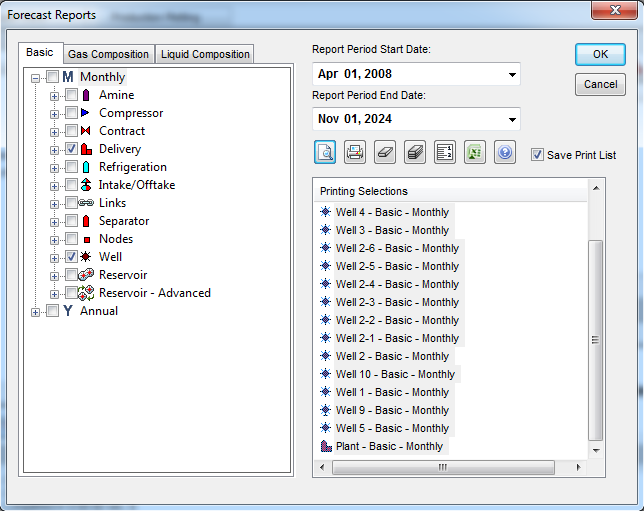
2. Click the tab for the data you want to export: Basic, Gas Composition, or Liquid Composition.
3. Select the facilities for your reporting time period from the left-side box.
Facility data can be reported monthly or yearly. The selected facilities are added to the Printing Selections box.
4. Select a Report Period Start Date and a Report Period End Date from the drop-down lists.
5. Select facilities from the Printing Selections box.
6. (Optional) Click the Print Preview icon ( ) to preview the report for the selected facilities.
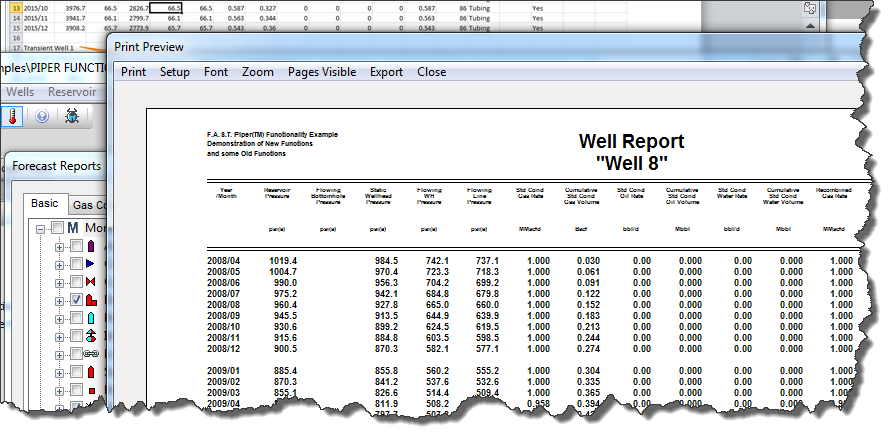
7. (Optional) Print the report, or export it to Excel.
8. Click OK.
System changes reports
The system changes reports details changes in the configuration of your gathering system through time.
To generate a system changes report:
1. Click the Output menu and select System Changes Reports.
The System Changes Report dialog box opens.
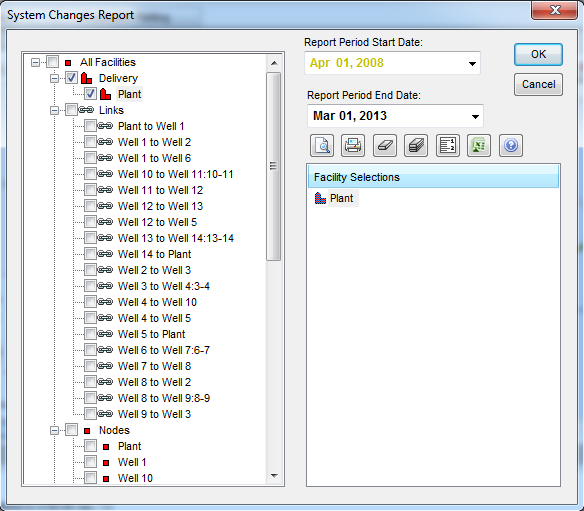
2. Select facilities from the left-side box.
The facilities are added to the Facility Selections box.
3. Select a Report Period Start Date and a Report Period End Date from the drop-down lists.
4. Select facilities from the Facility Selections box.
5. (Optional) Click the Print Preview icon () to preview the report for the selected facilities.
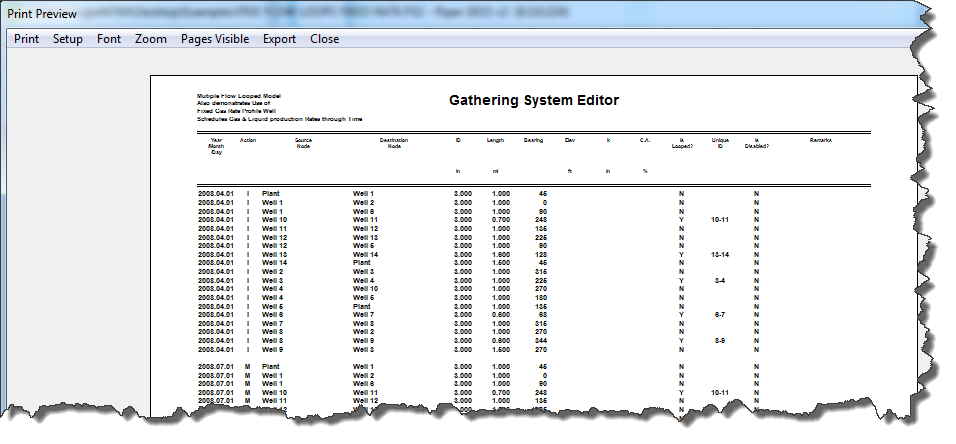
6. Review the Action column.
The actions are defined as follows:
- I — initiated; added at the model start date
- D — deleted from the model
- M — modified; facility was added in prior dates, but input / forecast parameters have been modified on the listed date
- A — added; facility did not exist in prior dates, and is now added on the listed date
This report allows you to quickly determine dates where changes have been made in the model.
7. (Optional) Print the report, or export it to Excel.
8. Click OK.